Outrora uses a custom client (based on OTClient) with quality-of-life tools, a built-in CAM recorder, auto loot, an in-game Market opened from the depot, and a dedicated Android mobile build. Download it from download.outrora.online (Windows PC and Android APK).
Windows (PC)
Full desktop client — keyboard/mouse, WASD walk, CAM recording, trainer module, wide map, and all QoL tools.
Android (mobile)
Same account and characters on your phone — touch UI with joystick, action bars, and quick buttons for loot, attack, follow, use, and look. Train, make runes, and hunt on the go.
Client features
- Trainer Module — auto mana, rune maker, auto eat (Ctrl+T).
- Auto-open backpacks on login.
- Wide map in two panels.
- Exiva from VIP — click / right-click a name (see Exiva).
- Item tooltips (attributes, rarity, details).
- Ctrl+Space — WASD walk; Space / Shift+Space on the battle list (PC).
- Auto Reconnect — on the character list; retries login if you disconnect.
- Premium days shown on the character list (Account Status).
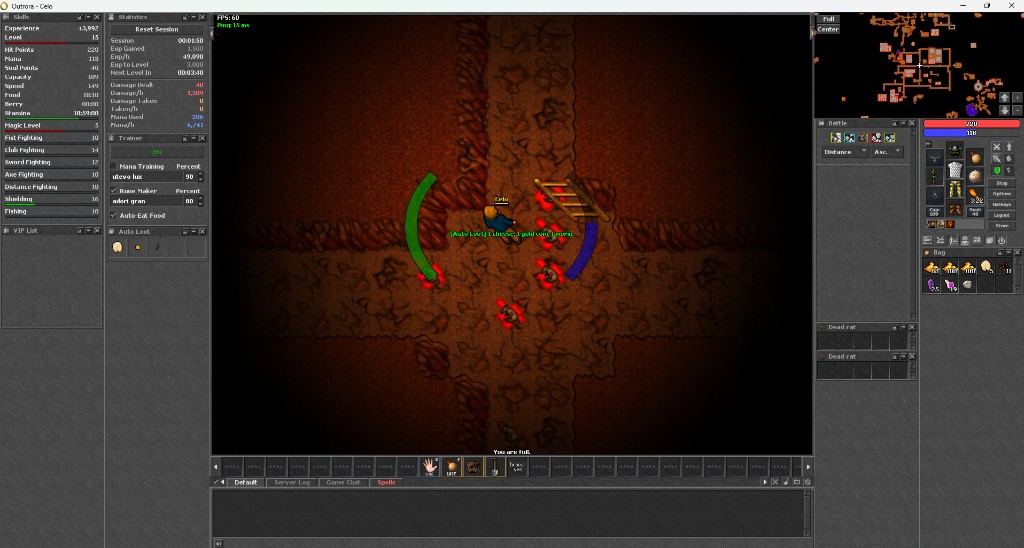
Trainer / Rune Maker
The Trainer window automates mana training, rune making, and eating food. Open or focus it with Ctrl+T. Use the green/red ON / OFF button to enable or disable the whole module.
-
Mana Training — when your mana reaches the set
Percent, casts the spell in the text box (example:
utevo luxat 90%). -
Rune Maker — same idea for rune spells (example:
adori granat 80%). Click the spell box to edit it. - Auto-Eat Food — eats food from your inventory to keep regen going.
Enable only the checkboxes you need. Works on PC and mobile — useful for AFK train / rune making (disable battery optimization on Android).
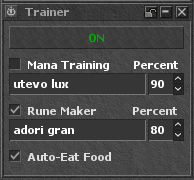
Options
Open the Options window with Ctrl+O. Tabs include Game, Interface, Graphics, Others, and TibiCAM.
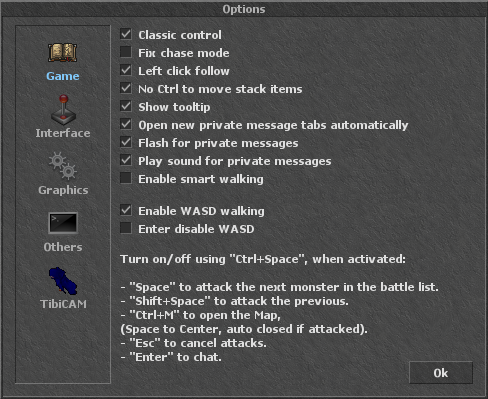
Useful settings
- Play sound for private messages (Game) — plays a sound when someone PMs you. Turn it off here if you do not want the alert, or lower / mute the volume in Windows mixer for the Outrora process.
- Classic control (Game) — classic click / drag style for walking and interacting.
- HD Mode (Graphics) — upscales the view for sharper look on high-resolution screens; turn off for the classic pixel look.
- Auto Screenshot (Others) — optional screenshots on level up, skill / magic level up, or character death. Open the screenshots folder from the same tab.
- WASD walking (Game) — toggle with Ctrl+Space; see the tips on that tab for Space / Shift+Space on the battle list.
CAM Recorder
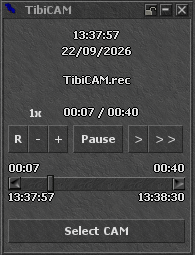
The CAM recorder saves your session so you (or staff) can replay what happened in-game — useful for reviews, reports, and checking fights.
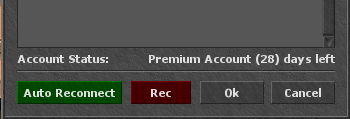
- On the character list, turn on Rec (red when active) before you press Ok / login. Desktop only — the button is hidden on mobile.
- To watch a recording: press ESC on the character list to open the list of saved CAMs, or go to Options > TibiCAM > Select CAM.
- While playing: open options with ESC, or CTRL+O.
Playback controls
- Space — play / pause
- Right — skip +2 seconds
- Ctrl+Right — skip +1 minute
- Up / Down — change playback speed
- Left — reset
Mobile client (Android)
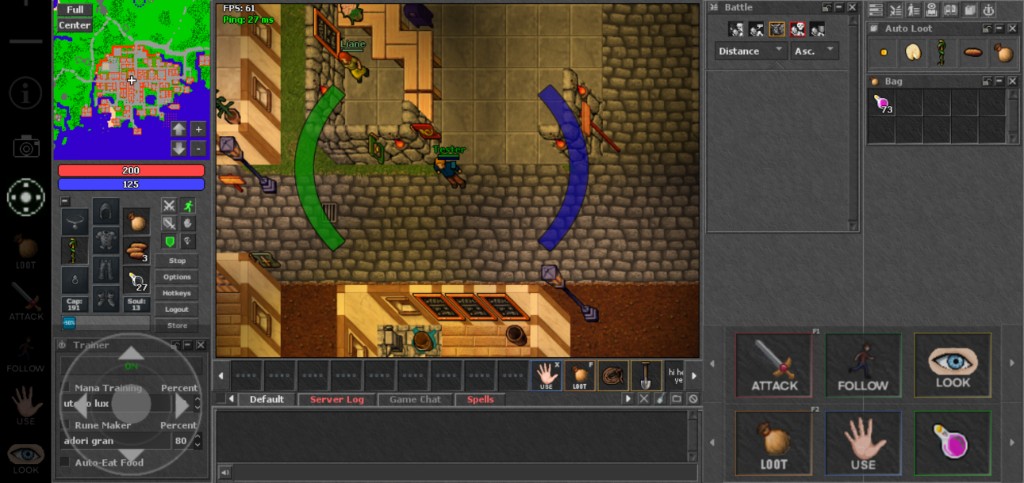
Outrora ships a dedicated Android APK. Use the same account as on PC. It is built for touch: joystick movement, an actions menu, and side buttons for common hunt actions. You can train skills, make runes, and hunt from your phone.
Players logged in on mobile show a blue
 mobile emblem under their character name, so others can see they
are on the phone client.
mobile emblem under their character name, so others can see they
are on the phone client.
- Download: download.outrora.online or the Android APK.
- First login shows an in-client help window (i) with button tips — open it again anytime from the mobile UI.
- Zoom (+ / −) — fit the game view to your screen.
- Keypad — one tap toggles the joystick and the actions menu.
- Hotkeys with volume buttons — F1 = Volume Up, F2 = Volume Down. Assign F1/F2 to a slot in the Action Menu to trigger it with the phone volume keys (useful while hunting or training).
- Disable battery optimization for the Outrora app so Android does not kill it in the background (train / AFK).
Action Menu
- The joystick / keypad button shows or hides the Action Menu (and the joystick).
- Works like the PC action bar: drag items into a box, or hold a box to set an action or hotkey.
- Side arrows switch quickly between shortcut pages.
- Layout: 9 shortcuts per row, 2 rows = 18 quick shortcuts available.
- Slots bound to F1 / F2 fire with Volume Up / Volume Down.
Quick buttons
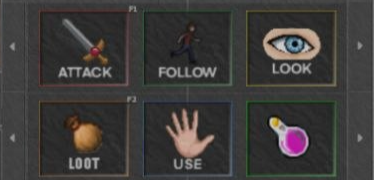
- Loot — 1 tap: loot nearby open corpses · 2 taps: open Auto Loot list.
- Attack — 1 tap: attack nearest monster · 2 taps: next tap chooses target.
- Follow — 1 tap: change follow attack mode · 2 taps: next tap to follow.
- Use — 1 tap: use item in front / under you · 2 taps: next tap to use.
- Look — 1 tap: look at first creature on the battle list · 2 taps: next tap to look.
Anti-bot: on mobile, Ctrl+Z (or the mapped control) opens the reply window when a check appears.
Auto Loot
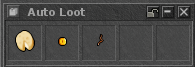
Auto Loot pulls selected items from a corpse when you open the body — so you spend less time sorting loot in hunts. Opening the corpse is required; it does not loot closed bodies by itself.
- Ctrl+H opens the Auto Loot window (PC). On mobile, double-tap the Loot button.
- Up to 5 items: drag an item into a slot, or click an empty slot to add it to the list.
- When you open a corpse, listed items are taken automatically.
- Some items cannot be added (for example red berries and luck boxes).
Market
Trading is done in-game. Open the Market from inside your depot — a dedicated window opens where you browse offers, buy, sell, and manage your listings. You can list any item. Offers stay available even while you are offline.
How it works
- In-game only for trades — buy, sell, add and remove offers through the Market window opened from the depot.
- Website browse only — outrora.online/market lists active offers for browsing. You cannot buy or sell there — purchases and listings are in-game only (Market from the depot).
- Any item can be listed (not limited to runes).
- Buyers pay from their bank balance (gold) or with premium points, depending on how the seller priced the offer.
- Purchased items are delivered to your depot — keep free depot slots or buy/remove may fail.
- Listing fee: 500 gp to add an offer (taken from bank balance).
- Level 20+ is required to add offers.
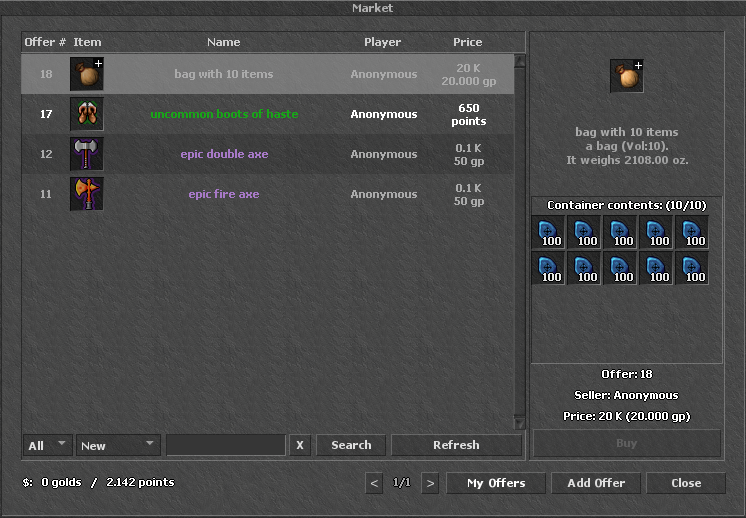
Adding an offer
- Open the Market from your depot.
- Place the item in the arrow (ammunition) slot.
- Click Add Offer.
- Set the price in gold coins or premium points.
- Confirm — 500 gp is charged from your bank to create the listing, and the item leaves the arrow slot into the market.
Buying an offer
- Browse or search offers in the Market window.
- Have enough bank gold or premium points for that offer’s price type.
- On success, the item is sent to your depot.
In the Market window
Browse offers, search/filter, open My Offers, or Add Offer with the item in the arrow slot. Everything about the deal happens here — not on the website.
On the website
outrora.online/market — browse active offers only. To buy or sell, log in and open Market from the depot in the client.
Quick summary
| Download | download.outrora.online — Windows + Android |
| Android APK | outrora.apk |
| Auto Reconnect | Toggle on character list |
| CAM start | Rec on character list before login (PC) |
| Watch CAM | ESC on character list · Options > TibiCAM > Select CAM |
| CAM options | ESC / CTRL+O · Options > TibiCAM |
| Trainer | Ctrl+T · mana train · rune maker · auto-eat |
| Auto Loot | Ctrl+H · drag or click slot · open corpse · up to 5 |
| Market | Open from depot — any item · trade in client |
| Add offer | Item in arrow slot · price in gold or PP · fee 500 gp |
| Buy | Pays from bank / PP · item arrives in depot |
| Website market | outrora.online/market — browse only (buy in-game) |
| Options | Ctrl+O · Game / Interface / Graphics / Others / TibiCAM |
| PM sound | Options > Game · or mute in Windows mixer |
| HD Mode | Options > Graphics |
| Auto Screenshot | Options > Others — level, skills, death |
| WASD | Ctrl+Space (PC) |
| Mobile | Joystick · Action Menu (18 slots) · quick buttons |
| Mobile emblem | Blue phone icon under the name when on mobile |
| Mobile hotkeys | F1 = Volume Up · F2 = Volume Down |